
'/%3e%3ccircle%20cx='24'%20cy='24'%20r='9.5'%20fill='%231a73e8'/%3e%3cpath%20d='M34.391%2030.003%2024.001%2048A23.994%2023.994%200%200%200%2044.78%2012.003H23.999l-.003.01a11.985%2011.985%200%200%201%2010.395%2017.99Z'%20fill='url(%23chrome-yellow)'/%3e%3cpath%20d='M13.609%2030.003%203.218%2012.006A23.994%2023.994%200%200%200%2024.003%2048l10.39-17.997-.007-.007a11.985%2011.985%200%200%201-20.777.007Z'%20fill='url(%23chrome-green)'/%3e%3c/svg%3e)
Chrome
Install from the Chrome Web Store.Your browser will update it automatically.
Chrome Web StoreImport webpage formulas or select an area for screenshot recognition.
Version 0.1.7
Install from the Chrome Web Store.Your browser will update it automatically.
Chrome Web Store'%20gradientUnits='userSpaceOnUse'%3e%3cstop%20offset='.7'%20stop-opacity='0'/%3e%3cstop%20offset='.9'%20stop-opacity='.5'/%3e%3cstop%20offset='1'/%3e%3c/radialGradient%3e%3cradialGradient%20id='edge-shadow-b'%20cx='-340.3'%20cy='63'%20r='143.2'%20gradientTransform='matrix(.15%20-.99%20-.8%20-.12%20176.6%20-125.4)'%20gradientUnits='userSpaceOnUse'%3e%3cstop%20offset='.8'%20stop-opacity='0'/%3e%3cstop%20offset='.9'%20stop-opacity='.5'/%3e%3cstop%20offset='1'/%3e%3c/radialGradient%3e%3cradialGradient%20id='edge-green'%20cx='113.4'%20cy='570.2'%20r='202.4'%20gradientTransform='matrix(-.04%201%202.13%20.08%20-1179.5%20-106.7)'%20gradientUnits='userSpaceOnUse'%3e%3cstop%20offset='0'%20stop-color='%2335c1f1'/%3e%3cstop%20offset='.3'%20stop-color='%232bc3d2'/%3e%3cstop%20offset='.7'%20stop-color='%2336c752'/%3e%3c/radialGradient%3e%3cradialGradient%20id='edge-highlight'%20cx='376.5'%20cy='568'%20r='97.3'%20gradientTransform='matrix(.28%20.96%20.78%20-.23%20-303.8%20-148.5)'%20gradientUnits='userSpaceOnUse'%3e%3cstop%20offset='0'%20stop-color='%2366eb6e'/%3e%3cstop%20offset='1'%20stop-color='%2366eb6e'%20stop-opacity='0'/%3e%3c/radialGradient%3e%3clinearGradient%20id='edge-blue-a'%20x1='63.3'%20y1='84'%20x2='241.7'%20y2='84'%20gradientTransform='matrix(1%200%200%20-1%200%20266)'%20gradientUnits='userSpaceOnUse'%3e%3cstop%20offset='0'%20stop-color='%230c59a4'/%3e%3cstop%20offset='1'%20stop-color='%23114a8b'/%3e%3c/linearGradient%3e%3clinearGradient%20id='edge-blue-b'%20x1='157.3'%20y1='161.4'%20x2='46'%20y2='40.1'%20gradientTransform='matrix(1%200%200%20-1%200%20266)'%20gradientUnits='userSpaceOnUse'%3e%3cstop%20offset='0'%20stop-color='%231b9de2'/%3e%3cstop%20offset='.7'%20stop-color='%230680d7'/%3e%3cstop%20offset='1'%20stop-color='%230078d4'/%3e%3c/linearGradient%3e%3c/defs%3e%3cpath%20d='M231.1%20190.5a93.7%2093.7%200%200%201-10.6%204.7%20101.9%20101.9%200%200%201-35.9%206.4c-47.3%200-88.5-32.5-88.5-74.3a31.5%2031.5%200%200%201%2016.4-27.3c-42.8%201.8-53.8%2046.4-53.8%2072.5%200%2074%2068.1%2081.4%2082.8%2081.4%207.9%200%2019.8-2.3%2027-4.6l1.3-.4a128.3%20128.3%200%200%200%2066.6-52.8%204%204%200%200%200-5.3-5.6Z'%20fill='url(%23edge-blue-a)'/%3e%3cpath%20d='M231.1%20190.5a93.7%2093.7%200%200%201-10.6%204.7%20101.9%20101.9%200%200%201-35.9%206.4c-47.3%200-88.5-32.5-88.5-74.3a31.5%2031.5%200%200%201%2016.4-27.3c-42.8%201.8-53.8%2046.4-53.8%2072.5%200%2074%2068.1%2081.4%2082.8%2081.4%207.9%200%2019.8-2.3%2027-4.6l1.3-.4a128.3%20128.3%200%200%200%2066.6-52.8%204%204%200%200%200-5.3-5.6Z'%20opacity='.35'%20fill='url(%23edge-shadow-a)'/%3e%3cpath%20d='M105.7%20241.3A79.2%2079.2%200%200%201%2083%20220a80.7%2080.7%200%200%201%2029.5-120c3.2-1.5%208.5-4.1%2015.6-4a32.4%2032.4%200%200%201%2025.7%2013%2031.9%2031.9%200%200%201%206.3%2018.7c0-.2%2024.5-79.6-80-79.6-43.9%200-80%2041.6-80%2078.2a130.2%20130.2%200%200%200%2012.1%2056%20128%20128%200%200%200%20156.4%2067%2075.5%2075.5%200%200%201-62.8-8Z'%20fill='url(%23edge-blue-b)'/%3e%3cpath%20d='M105.7%20241.3A79.2%2079.2%200%200%201%2083%20220a80.7%2080.7%200%200%201%2029.5-120c3.2-1.5%208.5-4.1%2015.6-4a32.4%2032.4%200%200%201%2025.7%2013%2031.9%2031.9%200%200%201%206.3%2018.7c0-.2%2024.5-79.6-80-79.6-43.9%200-80%2041.6-80%2078.2a130.2%20130.2%200%200%200%2012.1%2056%20128%20128%200%200%200%20156.4%2067%2075.5%2075.5%200%200%201-62.8-8Z'%20opacity='.41'%20fill='url(%23edge-shadow-b)'/%3e%3cpath%20d='M152.4%20148.8c-.9%201-3.4%202.5-3.4%205.6%200%202.6%201.7%205.2%204.8%207.3%2014.3%2010%2041.4%208.6%2041.5%208.6a59.6%2059.6%200%200%200%2030.3-8.3%2061.4%2061.4%200%200%200%2030.4-52.9c.3-22.4-8-37.3-11.3-43.9C223.4%2023.8%20177.7%200%20128%200A128%20128%200%200%200%200%20126.2c.5-36.5%2036.8-66%2080-66%203.5%200%2023.5.3%2042%2010a72.6%2072.6%200%200%201%2030.9%2029.3c6.1%2010.6%207.2%2024.1%207.2%2029.5s-2.7%2013.3-7.8%2019.9Z'%20fill='url(%23edge-green)'/%3e%3cpath%20d='M152.4%20148.8c-.9%201-3.4%202.5-3.4%205.6%200%202.6%201.7%205.2%204.8%207.3%2014.3%2010%2041.4%208.6%2041.5%208.6a59.6%2059.6%200%200%200%2030.3-8.3%2061.4%2061.4%200%200%200%2030.4-52.9c.3-22.4-8-37.3-11.3-43.9C223.4%2023.8%20177.7%200%20128%200A128%20128%200%200%200%200%20126.2c.5-36.5%2036.8-66%2080-66%203.5%200%2023.5.3%2042%2010a72.6%2072.6%200%200%201%2030.9%2029.3c6.1%2010.6%207.2%2024.1%207.2%2029.5s-2.7%2013.3-7.8%2019.9Z'%20fill='url(%23edge-highlight)'/%3e%3c/svg%3e)
Install from Edge Add-ons.Your browser will update it automatically.
Edge Add-ons
Download the CRX package.Drag it into the extensions management page to install.
Download CRX
Download and extract the ZIP package.Install it manually in developer mode.
Download ZIP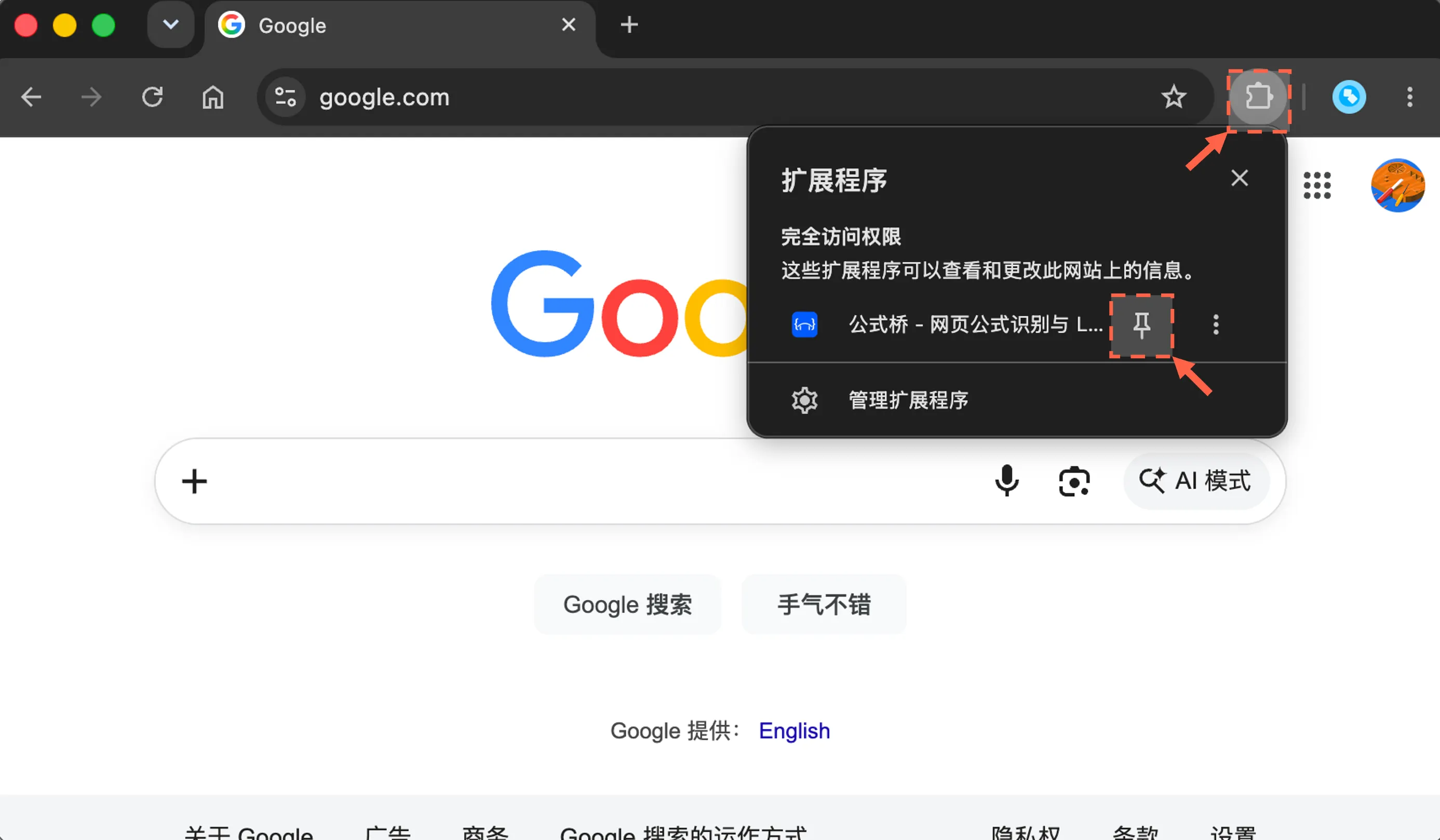
Once pinned, click its toolbar icon to open Formula Bridge.
After installation, click the Extensions icon to the right of the address bar.
Find Formula Bridge in the extension list.
Click the pin next to Formula Bridge to keep it on the browser toolbar.
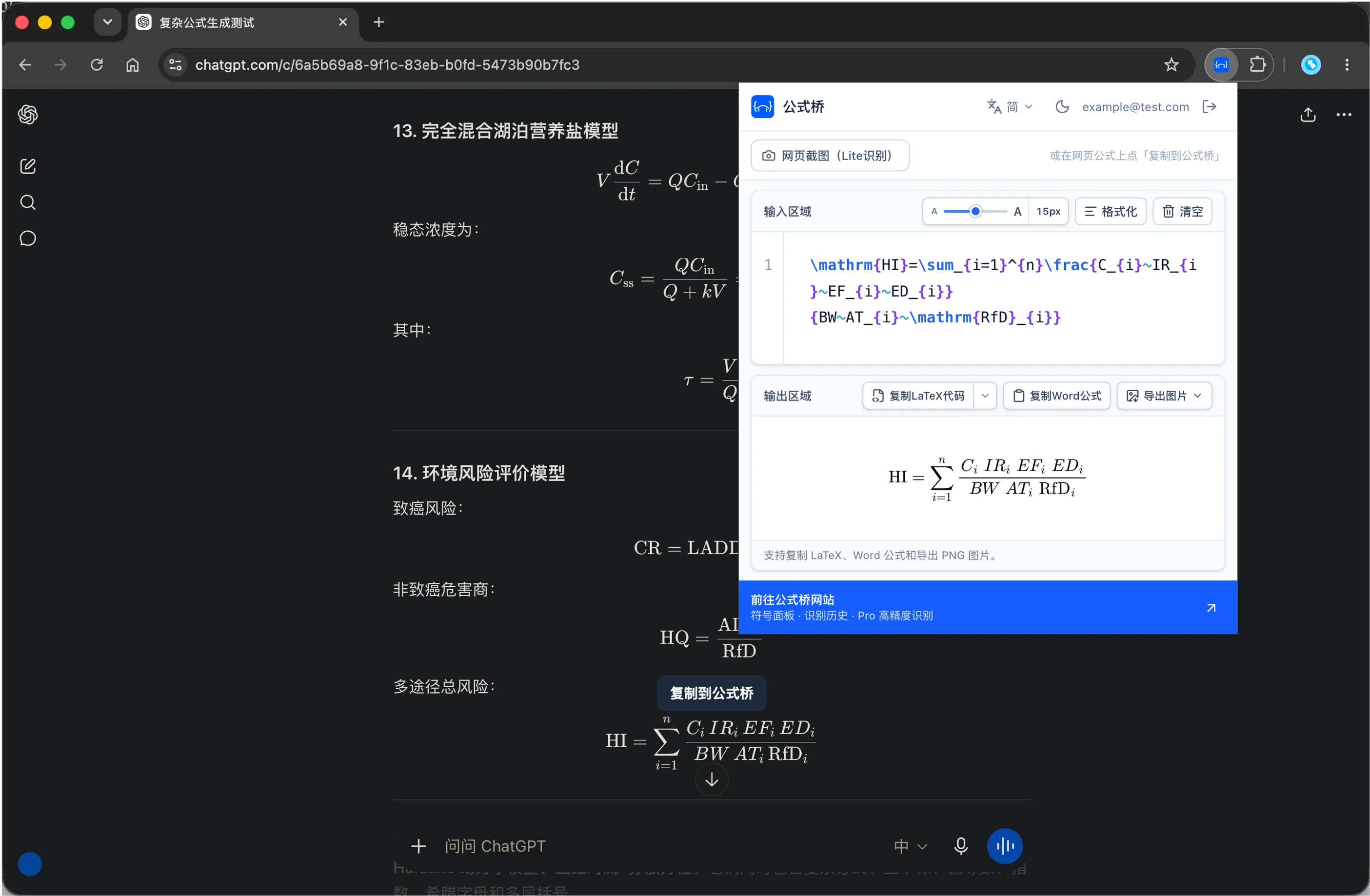
With the browser extension, you can import formulas from webpages in one click or select an area of the page for screenshot recognition.
Hover over a formula on a webpage to import it, or start webpage capture recognition from the extension.
After downloading the CRX, drag it into the extensions management page to install it.
This guide applies to Chromium-based browsers including Chrome, Edge, QQ Browser, and Quark Browser. Chrome is shown as an example; specific entry points and CRX installation restrictions may vary slightly.
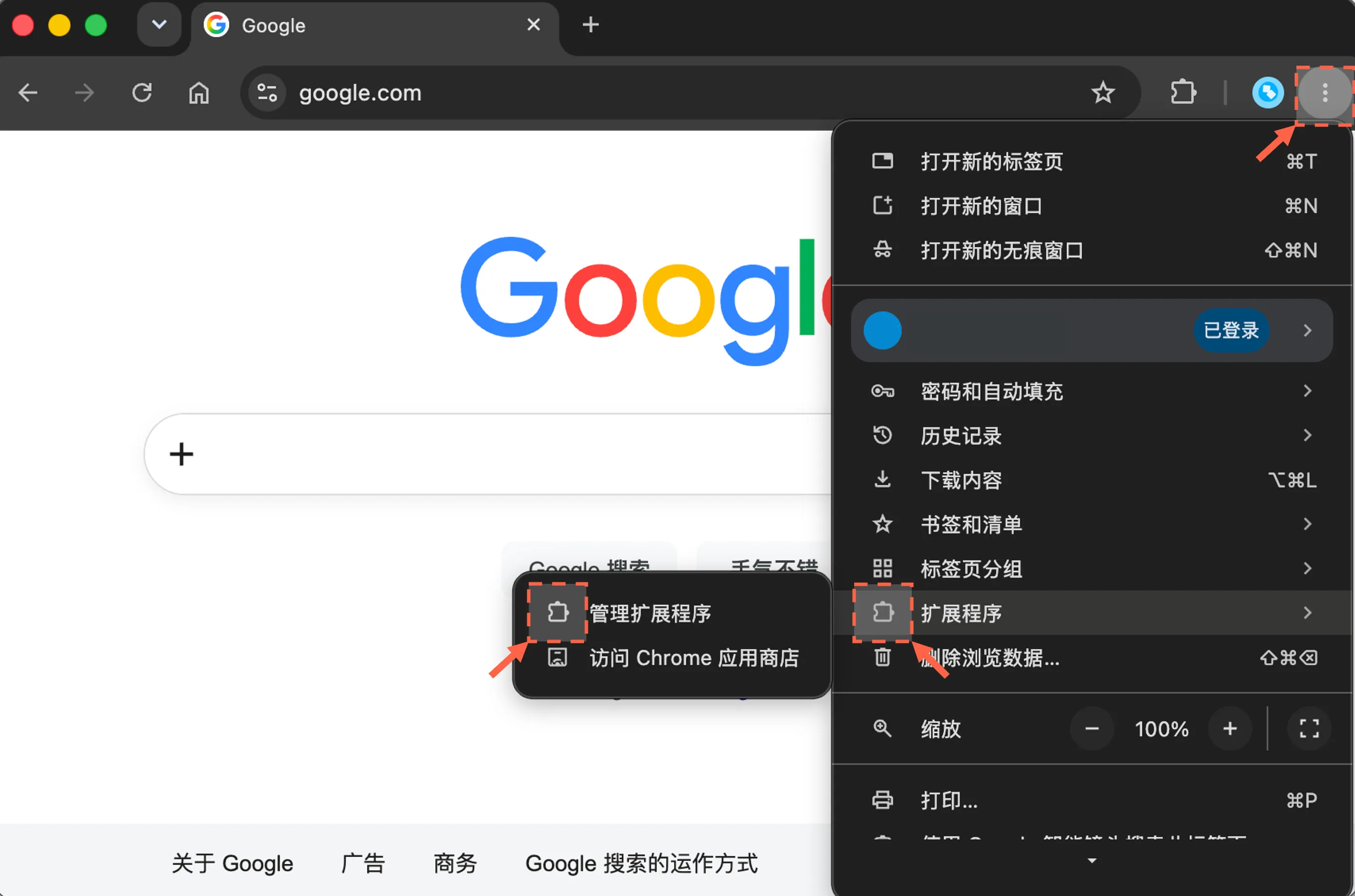
Installation step 1
Choose either way to open the extensions management page:
Option 1 · Use the browser menu
Extensions → Manage Extensions
OR
Option 2 · Open it from the address bar
chrome://extensionsWorks in Chromium-based browsers, such as:
Chrome · Edge · QQ Browser · Quark Browser, etc.
No need to find the entry in the browser menu
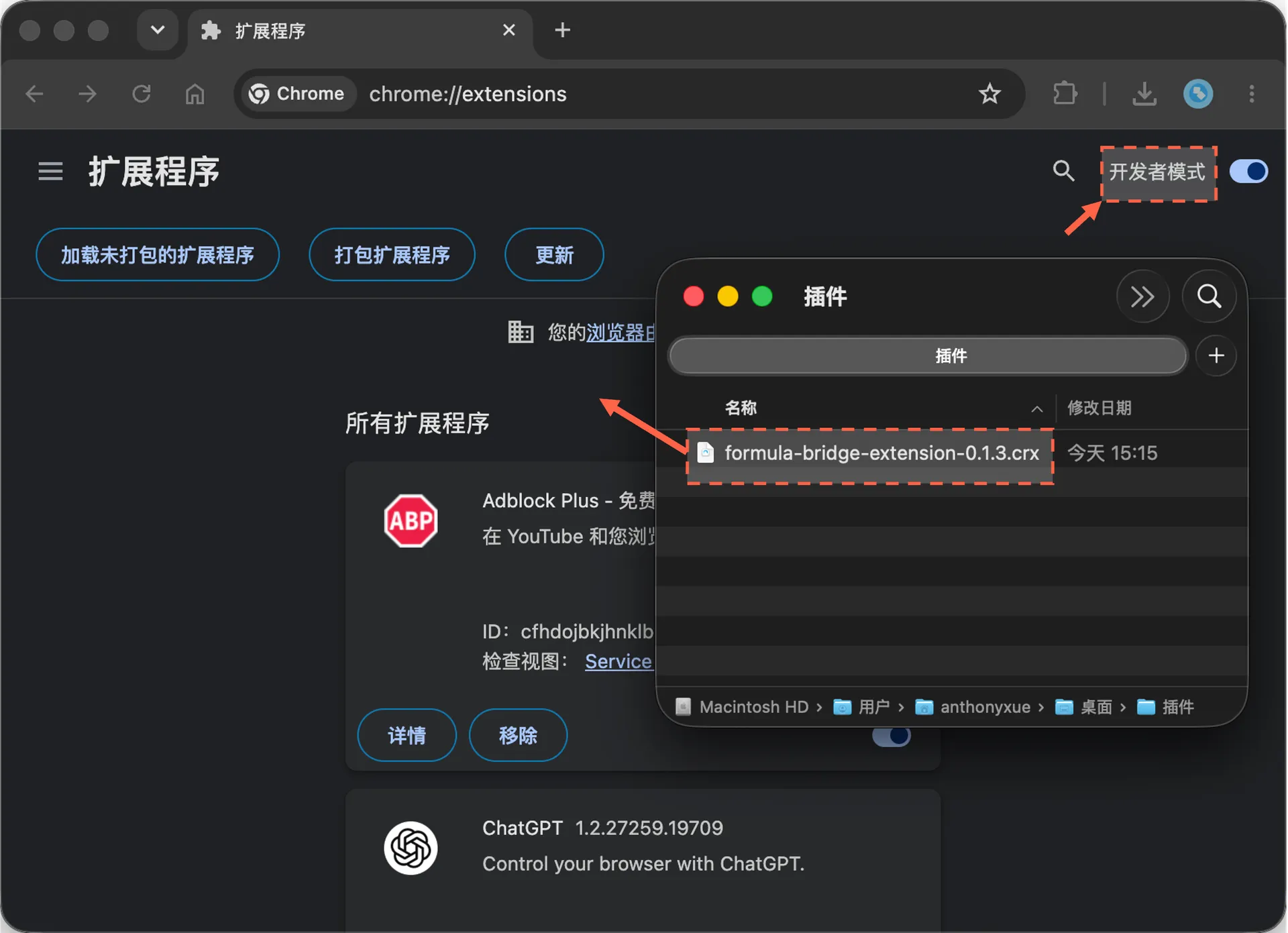
Installation step 2
Turn on Developer mode on the extensions page, drag the downloaded CRX file into the page, and confirm the installation when prompted.
Only download the CRX package from an official Formula Bridge link. If your browser blocks the installation, use an extension store or the ZIP package instead.
Download and extract the ZIP, then follow these steps to load the extension. New versions must be downloaded and installed again.
This guide applies to Chromium-based browsers including Chrome, Edge, QQ Browser, and Quark Browser. Chrome is shown as an example; specific entry points and CRX installation restrictions may vary slightly.
Installation step 1
Choose either way to open the extensions management page:
Option 1 · Use the browser menu
Extensions → Manage Extensions
OR
Option 2 · Open it from the address bar
chrome://extensionsWorks in Chromium-based browsers, such as:
Chrome · Edge · QQ Browser · Quark Browser, etc.
No need to find the entry in the browser menu
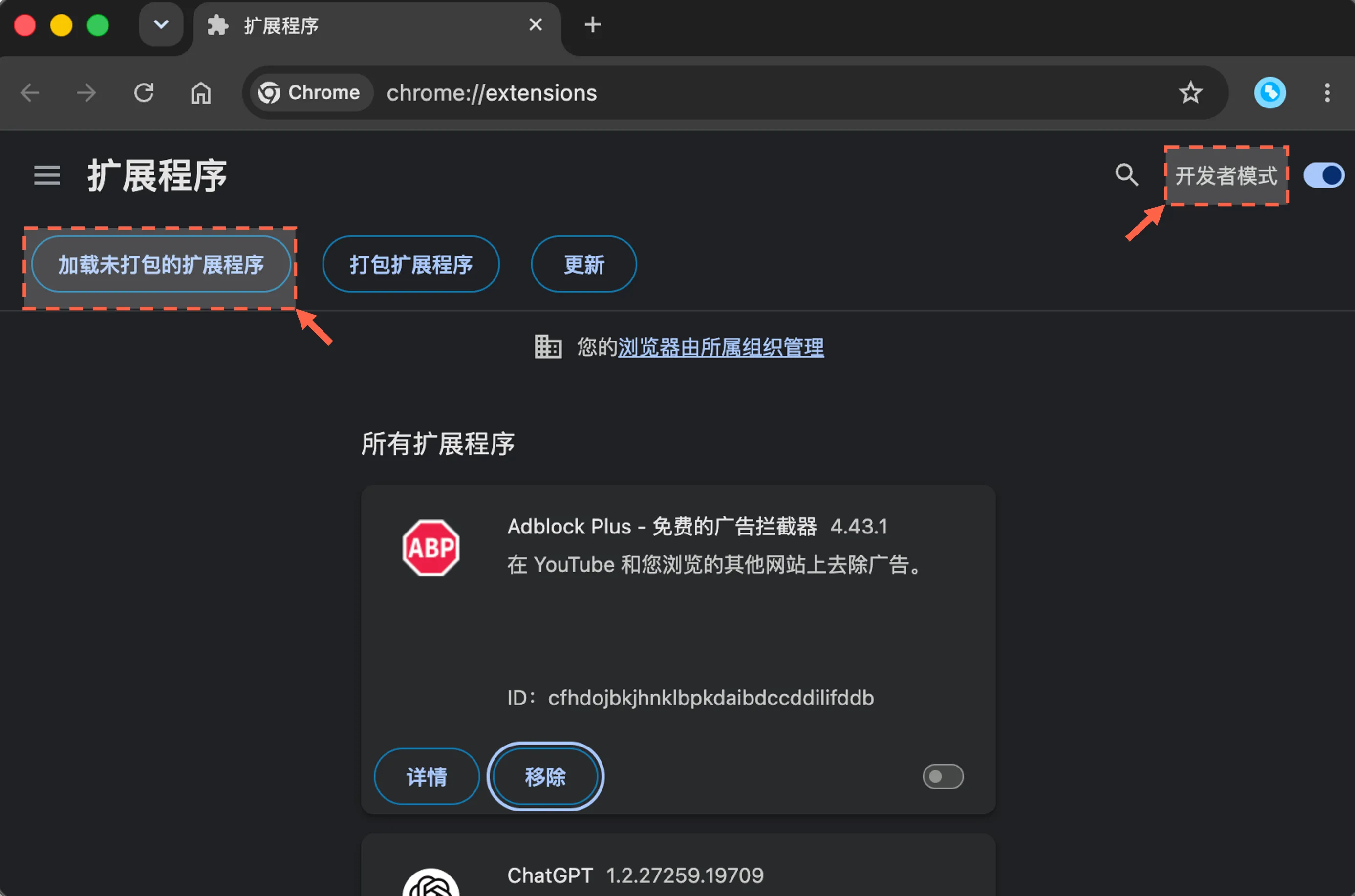
Installation step 2
Turn on Developer mode in the upper-right corner, then click Load unpacked.
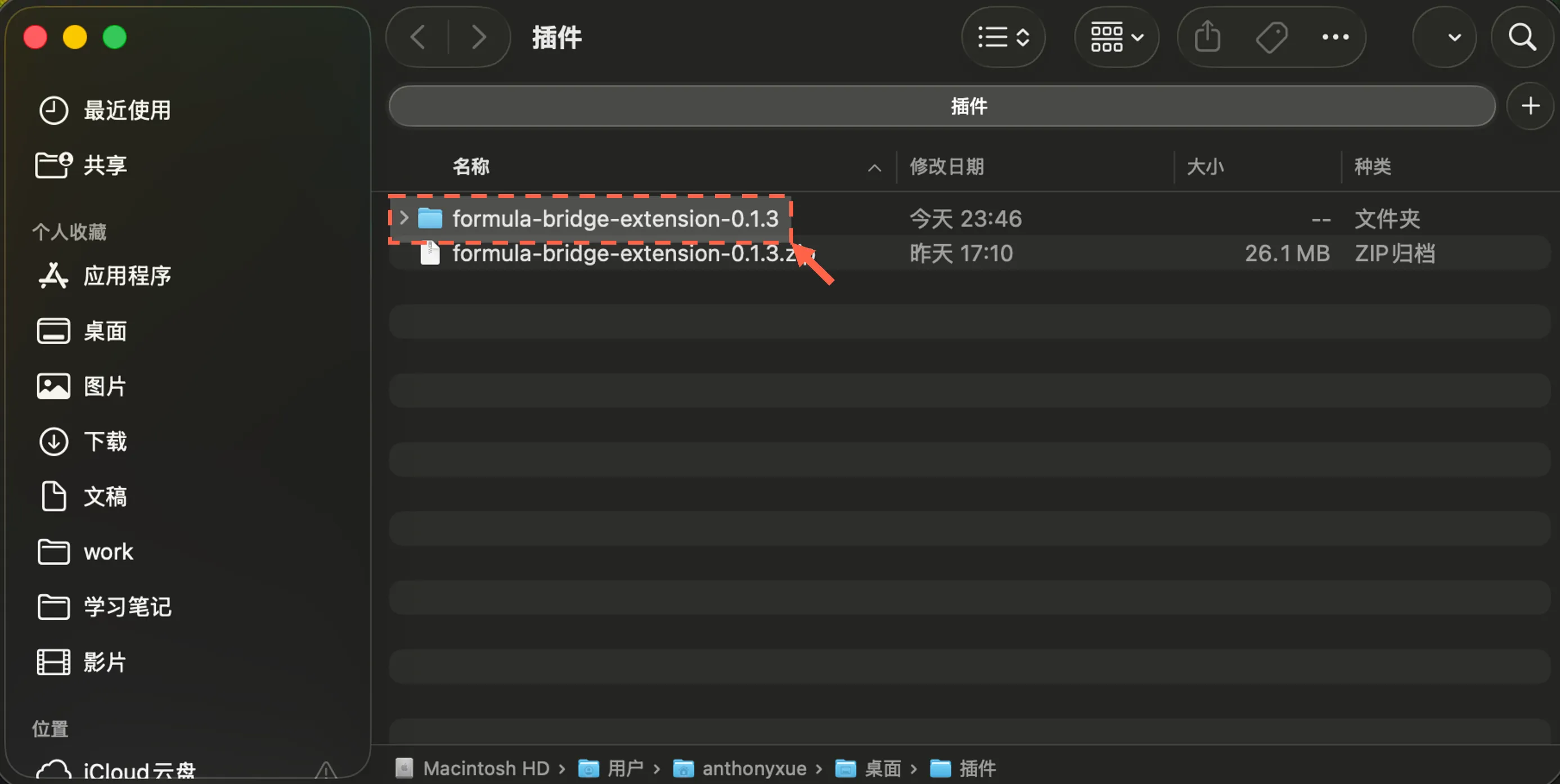
Installation step 3
Select the folder fully extracted from the ZIP package to complete the installation.
Only download the package from an official Formula Bridge link. Keep the extracted folder in a permanent location, because moving or deleting it may disable the extension.